

Onboarding
Welcome to kolum. This is your single, self-contained guide to CBAM: follow it top to bottom and you can set your company up and file your first report yourself, without needing any other page. Every step below groups its detail into tabs so you can jump straight to the topic you need, with real screenshots inline.
Setup means getting your companies, suppliers and imports into kolum so that your CBAM report can be built. In plain terms, the setup is about adding all the data for your CBAM-relevant goods into kolum. These are the goods whose CN code falls under CBAM and that enter the EU on your behalf. Every one of those goods is tied to a supplier, so supplier connections run through the whole journey, from setup to the finished report.
What CBAM requires
The Carbon Border Adjustment Mechanism (CBAM), introduced by Regulation (EU) 2023/956, puts a price on the carbon emitted when carbon-intensive goods are produced outside the EU and imported into it. It covers iron and steel, aluminium, cement, fertilisers, hydrogen, and electricity. If your company imports these goods, you must report the emissions embedded in them. The transitional phase (to the end of 2025) used a quarterly report; from 1 January 2026 the definitive period applies, with authorised CBAM declarants, annual declarations, and CBAM certificates.
Getting the upload templates
You can add records one at a time with Add New, but for many records the upload templates are quicker. Download the current templates below, or take them from the Upload file dialog of the relevant section in kolum, which always serves the latest version. Every template has an Explanation tab describing each column and whether it is mandatory, optional or conditional, and an Example tab with filled-in rows. Fill in the Upload Data tab only, keep the header row unchanged, and always start from a fresh template, as they are updated periodically. Three templates are mandatory: Companies, Suppliers and Imports. Articles, company production facilities, supplier production facilities and emission data are optional.
All 7 templates in one zip file.
Download all templates| Template | Used in step | Download |
|---|---|---|
| Mandatory templates | ||
Companies Your legal importing entities, identified by EORI number. Everything in kolum belongs to a company, so start here. | Add your companies | Download (.xlsx) |
Suppliers Non-EU producers and traders you buy from, with a default contact person. Every CBAM good is linked to a supplier, and the contact person is who you request emission data from later. | Add your suppliers | Download (.xlsx) |
Imports Shipments of CBAM goods per reporting timeframe, with quantity and unit. Your CBAM report is built from imports. | Add your imports | Download (.xlsx) |
| Optional templates | ||
Company production facilities Sites where your own goods are made, linked to a company by EORI. Only relevant if you manufacture goods yourself. | Add your companies | Download (.xlsx) |
Supplier production facilities Your suppliers' production sites, linked by Supplier Identifier. Turns a supplier into a manufacturer in kolum and enables facility-level emission data. | Add your suppliers | Download (.xlsx) |
Articles Your products by CN code, optionally with net weight per piece. Reference data that enriches your imports, but is not needed for compliance. | Add your articles | Download (.xlsx) |
Emission data Actual embedded emissions per supplier, CN code and reporting timeframe. Needed before the report, but usually collected from suppliers after setup. | Integrate Actual Emission Data | Download (.xlsx) |
If the Upload file dialog in kolum offers a newer version than the one listed here, use the file from the app.
- Always download a fresh template. Older versions are rejected.
- Fill in the Upload Data tab only, and leave the header row unchanged.
- Country fields take the two-letter ISO code (DE, TR, CN), not the full country name.
- The Explanation tab inside each file describes every column and marks it mandatory, optional or conditional.
Your setup, step by step
Before your account is live
Get your account created and log in
Once the contract is signed, our sales team sends you a welcome email asking for your admin users. Reply to that email with the people who should administer your kolum workspace. This runs in parallel with filling in the templates, so your account is never waiting on your data.
For each admin user, please send:
- First name and last name
- Email address
- Job title
- Phone number
At least one admin user is required. With that list, kolum creates your client account and the admin user accounts, usually within one working day, and the platform then sends each person a login invitation email.
Log in using the link in that invitation email. Your account is deliberately empty at this point, and that is fine. Use this first login to get familiar with where Companies, Suppliers and Imports live, and where the Add New and Upload file buttons sit, before your data is ready.
From then on your admins can add further users themselves under My Organization > Users, without asking kolum.
Load your data into kolum
Add your companies
Everything in kolum belongs to a company, so start here. A company is your legal importing entity and carries the CBAM obligation. Its key field is the EORI number, which EU customs uses to recognise you as an importer, so it must be exact.
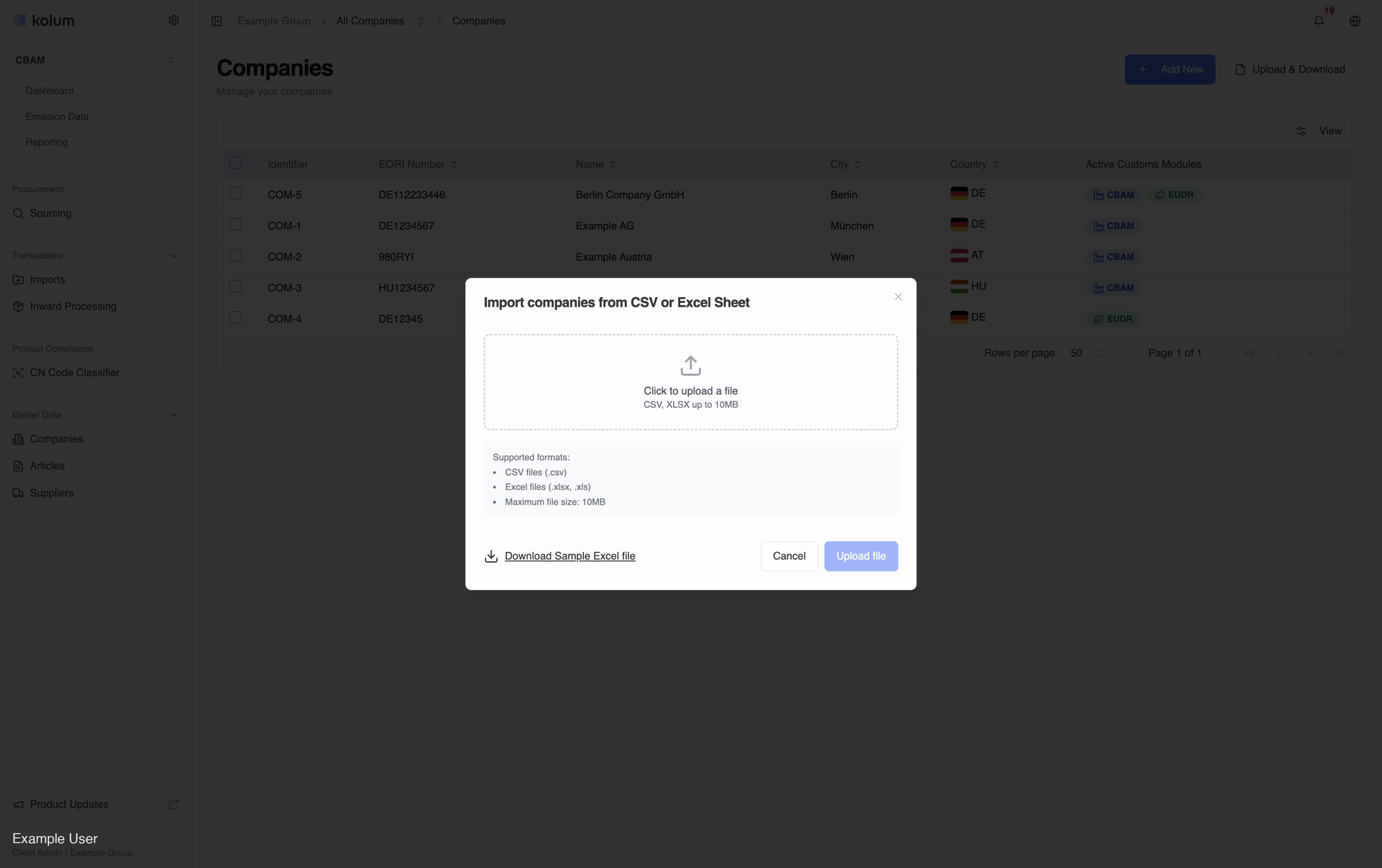
Open Master Data > Companies and either Add New for a single company, or Upload file with the Companies template for several at once. Production facilities are managed on each company's Associations tab and let you record where your own goods are made.
- Go to Companies and click Upload file in the top right. Download the fresh sample Excel or CSV template.
- Fill in your company data. Country must be the two-letter ISO code (DE, FR, IT). Writing the full country name will fail the upload.
- Click Select file, choose your completed file, then click Upload file.
- Review the preview. kolum shows validation errors row by row.
- Confirm the upload. Companies now appear in your Companies list.
Your legal importing entities, identified by EORI number. Everything in kolum belongs to a company, so start here.
Companies template field guide
| Field | Required | Format / allowed values | Example |
|---|---|---|---|
| Identifier | Optional (auto-generated as COM-n if blank) | Free text, unique in your account; use it to update companies on re-upload | COM-1 |
| EORI Number | Mandatory for EU companies, optional for non-EU | EORI as registered with customs; unique in your account | DE123456789012345 |
| Name | Mandatory | Legal name as it should appear in your records | GermanSteel GmbH |
| Postal Code | Mandatory | Free text | 10117 |
| City | Mandatory | Free text | Berlin |
| Country | Mandatory | Two-letter ISO code (dropdown) | DE |
| Street Name / Street Number / Post Office Box | Optional | Free text | Berliner Str. / 12 |
| Net Sales | Optional | up to 900,000 €; 900,001€ - 15,000,000€; 15,000,001€ - 50,000,000€; > 50,000,000€ (dropdown) | 900,001€ - 15,000,000€ |
| Number of Employees | Optional | 10; 10 - 50; 51 - 250; > 250 (dropdown) | 51 - 250 |
| Total Asset Value | Optional | up to 450,000€; 450,001€ - 7,500,000€; 7,500,001€ - 25,000,000€; > 25,000,000€ (dropdown) | 7,500,001€ - 25,000,000€ |
The three size bands (net sales, employees, total assets) are optional and carry through to reporting where relevant. EORI uniqueness is validated across the batch.
Add your suppliers
A supplier is a non-EU producer or trader you buy from. Emissions are specific to the producer, and every CBAM-relevant good links to a supplier. Recording suppliers now also lets you invite them later to provide emission data.
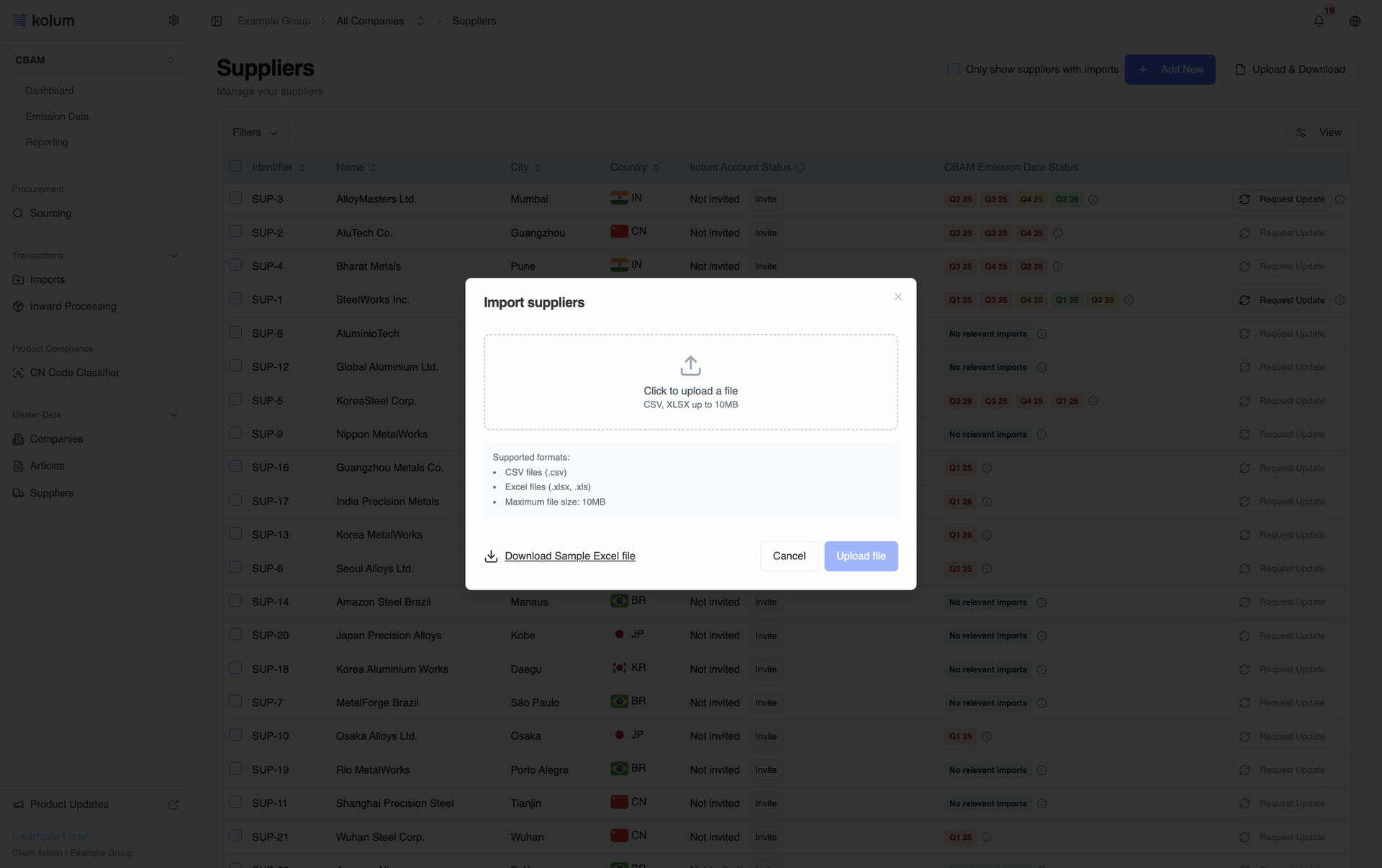
Open Supply Chain > Suppliers and either Add New for one, or Upload file with the Suppliers template. If a supplier has at least one production facility linked, kolum marks them a Manufacturer; otherwise they remain a Trader.
- On the Suppliers page, click Upload suppliers file and download the fresh sample template.
- Fill in one supplier per row, including a primary contact person.
- Upload the completed file. kolum validates row by row.
- Fix any highlighted errors in the file and re-upload until clean.
- Suppliers appear immediately. No invitations are sent yet.
Non-EU producers and traders you buy from, with a default contact person. Every CBAM good is linked to a supplier, and the contact person is who you request emission data from later.
Suppliers template field guide
| Field | Required | Format / allowed values | Example |
|---|---|---|---|
| Identifier | Mandatory | Free text, unique; the key that links articles, imports, emission data and documents to the supplier and updates the supplier on re-upload | SUP-001 |
| Name | Mandatory | Supplier's legal or trading name | Acme Steel Ltd |
| Business Partner Number | Optional | Catena-X BPNL; only needed if the supplier exchanges data over Catena-X | BPNL000000000XYZ |
| Postal Code | Mandatory | Free text | 35000 |
| City | Mandatory | Free text | Izmir |
| Country | Mandatory | Two-letter ISO code (dropdown) | TR |
| Street Name / Street Number / Post Office Box | Optional | Free text | Ataturk Cd. / 5 |
| Contact Person First Name / Last Name | Optional | Free text | Ayse / Yilmaz |
| Contact Person Phone Number | Optional | Free text | +90 232 000 00 00 |
| Contact Person E-Mail | Optional | Must use the supplier's own domain | ops@acmesteel.com |
Add your articlesOptional
An article is one of your products, carrying its CN code. This step is optional: from a CBAM compliance view articles are not required (your imports already carry the CN code and supplier). They are useful for reference and enrich your imports where you have them.
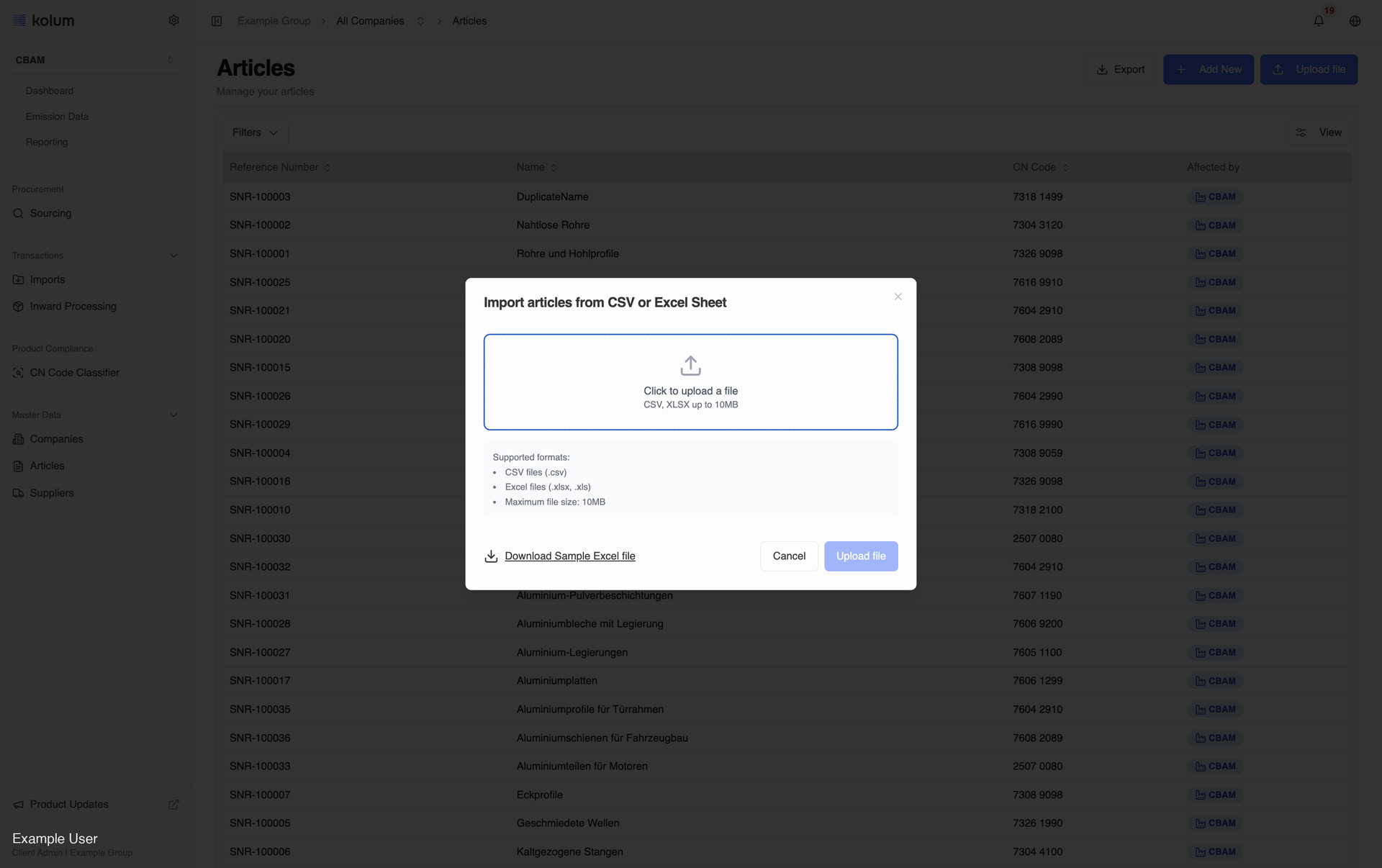
Open Master Data > Articles and either Add New for one, or Upload file with the Articles template. It is easiest to add suppliers first so you can link them during article creation.
- Go to Articles and click Upload File; download the fresh sample template.
- Complete the ten columns on the Upload Data tab. Use the Explanation and Example tabs for guidance.
- Return to Articles, click Upload File and select your file. Fix any highlighted rows and re-upload.
- Confirm on the validation screen to complete the upload.
Your products by CN code, optionally with net weight per piece. Reference data that enriches your imports, but is not needed for compliance.
Articles template field guide
| Field | Required | Format / allowed values | Example |
|---|---|---|---|
| Reference Number | Mandatory | Your internal article reference, unique | ART-STL-7208-001 |
| CN Code | Mandatory | 8-digit Combined Nomenclature code | 72085100 |
| Name | Mandatory | Free text; how the article appears in your list | Hot-rolled plate S355 |
| Description | Optional | Free text (grade, dimensions) | S355, 20 mm |
| Company EORI | Mandatory | EORI of a company already in kolum | DE123456789012345 |
| Supplier Identifier | Optional | Existing supplier identifier for purchased articles; leave blank for articles you produce yourself | SUP-001 |
| Precursor CN Code Is CBAM-Relevant | Optional | TRUE / FALSE; only for inward processing where the article's own CN code is outside CBAM but its precursor is CBAM-relevant | FALSE |
| Is EUDR-Relevant | Optional | TRUE / FALSE; blank = FALSE | FALSE |
| Net Weight Per Piece | Conditional (mandatory when Measurement Unit is filled) | Positive decimal, dot as separator; net weight of one piece without packaging | 12.5 |
| Measurement Unit | Conditional (mandatory when Net Weight Per Piece is filled) | kg or t, lower case (dropdown) | kg |
Add your imports
An import is a real shipment: a quantity of a CBAM-relevant good, from a supplier, brought into the EU. Imports are what your report is built from.
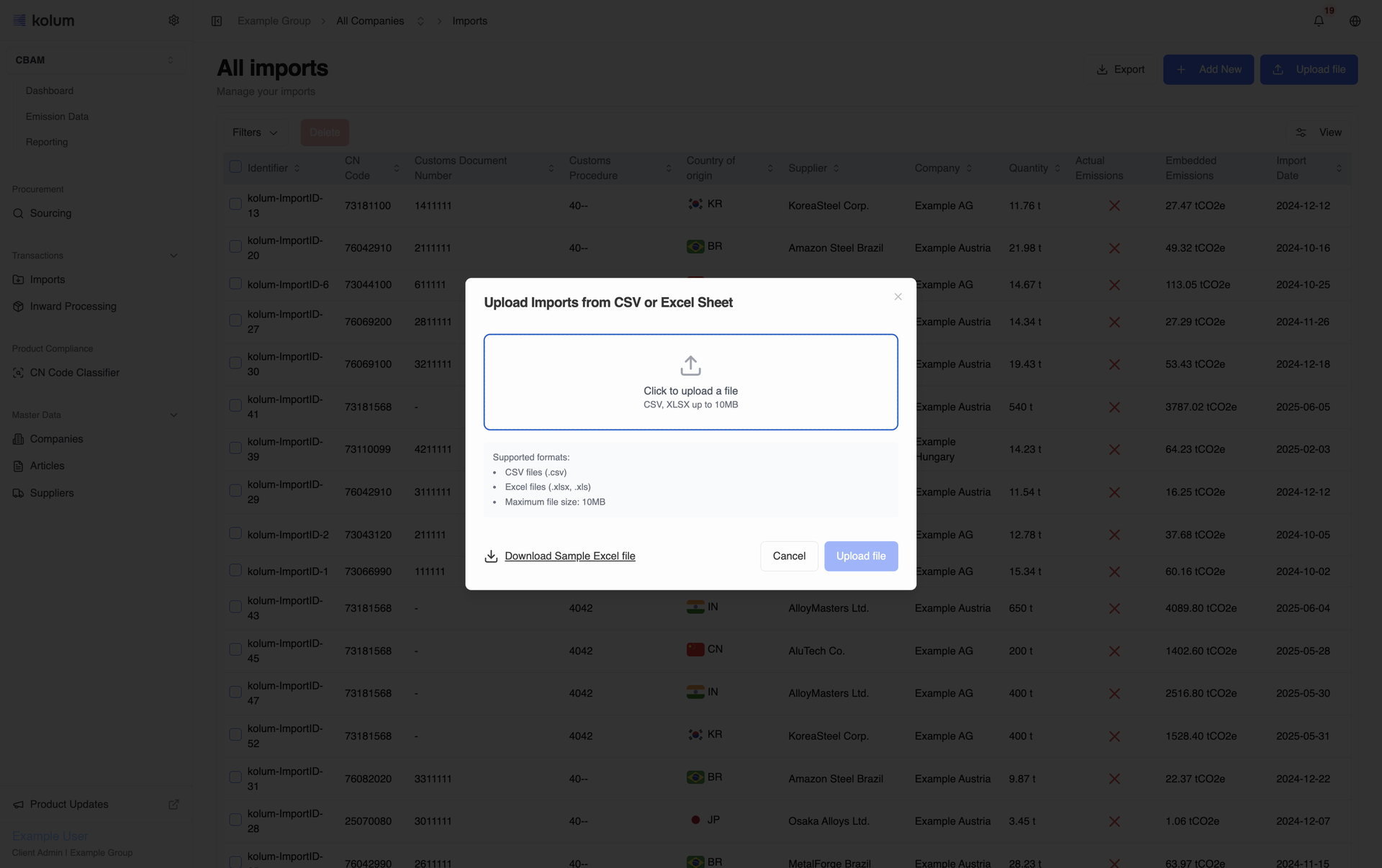
Timeframe first. Imports are gathered for a reporting timeframe (for example a quarter). You choose the period, and each import's date must fall within it. Open Transactions > Imports, choose your timeframe, then Add New for one or Upload file for many.
- On the Imports page, click Upload file and download the fresh template.
- Fill in your imports; ensure suppliers, companies and articles referenced already exist in kolum.
- Upload the file. kolum validates and highlights errors for you to fix.
- Confirm to complete the upload. Records appear in the Imports table.
Shipments of CBAM goods per reporting timeframe, with quantity and unit. Your CBAM report is built from imports.
The current template starts with an Identifier column, uses Quantity plus Measurement Unit instead of a tonnes-only Volume column, and adds Customs Value Currency. The Changelog tab in the template lists every header change. Always download a fresh template.
Review your data on the CBAM dashboard
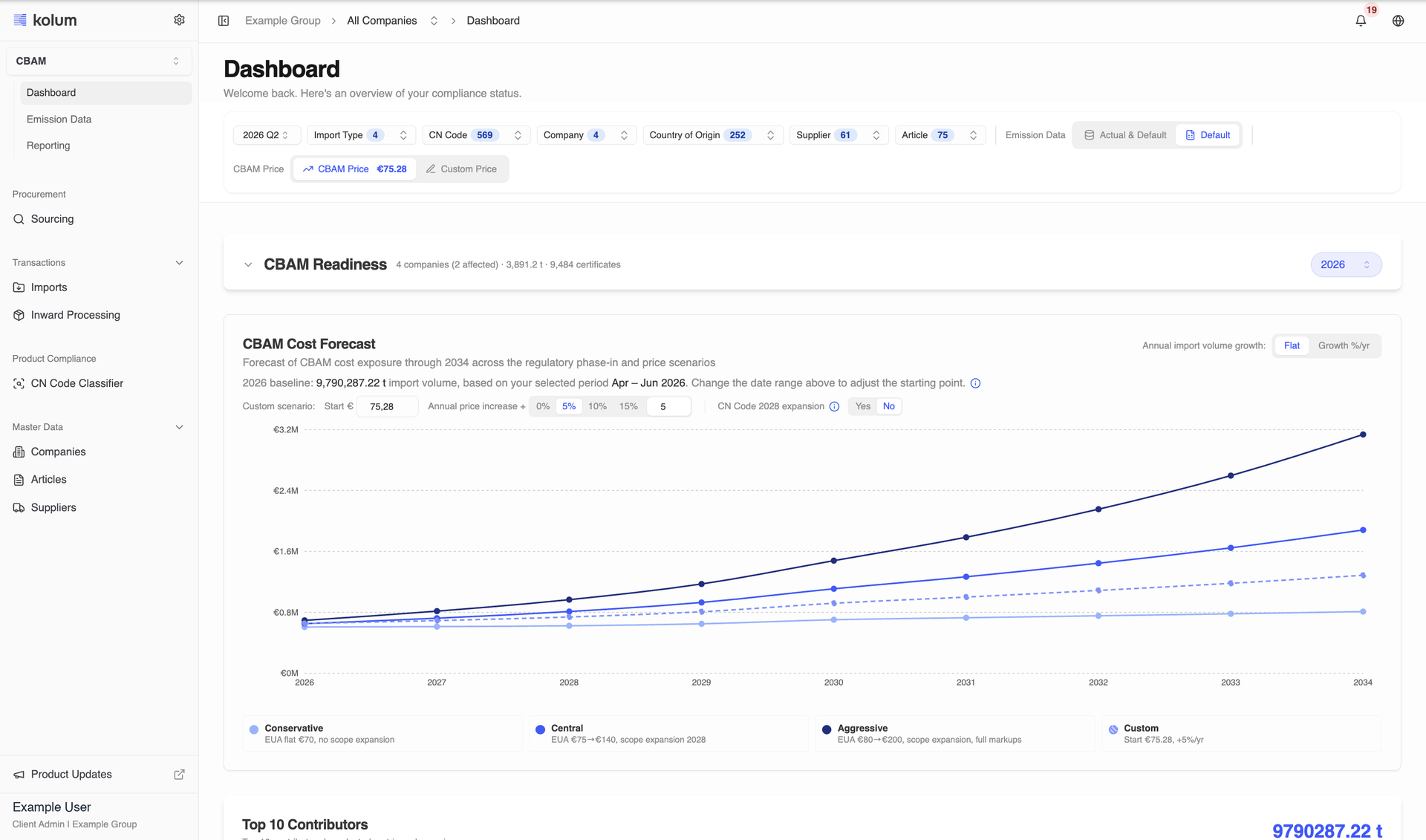
Open the Dashboard in the CBAM section. This is your first look at your data and analytics. Seeing your uploaded imports appear here confirms your core setup is complete and correct. If something looks off (a missing supplier, an import outside your timeframe), fix it before moving on.
- A time-frame filter that includes the current year, so you review this year's activity by default.
- An Emission Data filter defaulting to Default values, letting you switch between default and actual emissions.
- Total embedded emissions and a volume graph that includes CP10 goods.
- The predicted number of CBAM certificates required, with the certificate label shown on the price.
- Estimated carbon costs and the days remaining before your next reporting deadline.
- A Top 10 suppliers view that excludes EU-only origins.
- A loading overlay while figures are calculated.
- A per-company CBAM Readiness table with each company's volume against the 50 t threshold and the certificates it needs.
- A CBAM Cost Forecast to 2034 across Conservative, Central, Aggressive and Custom scenarios.
After setup
Integrate Actual Emission DataOptional
Emission data is the heart of CBAM. It is the emissions embedded in your goods, per CN code, supplier, and reporting timeframe, and it originates with your suppliers. There are two routes to get it into kolum.
For many entries at once, open Emission Data and Upload file with the Emission Data template. Uploads are scoped by the Reporting Timeframe selector. Rows are accepted even when no import matches them yet, so you can load supplier data ahead of the shipments; the timeframe decides whether Production Method (up to 2025) or Production Route (from 2026) applies, and the other column is ignored for that row.
Actual embedded emissions per supplier, CN code and reporting timeframe. Needed before the report, but usually collected from suppliers after setup.
Emission Data template field guide
| Field | Required | Format / allowed values | Example |
|---|---|---|---|
| EORI Number | Mandatory | EORI of a company in kolum | DE123456789012345 |
| CN Code | Mandatory | 8-digit CN code | 72085100 |
| Supplier Identifier | Mandatory | Existing supplier identifier | SUP-001 |
| Production Facility Identifier | Optional | Existing facility identifier of that supplier | FAC-CN-STL-001 |
| Country of Origin | Mandatory | Two-letter ISO code; full names fail | TR |
| Reporting Timeframe | Mandatory | YYYY-QX or YYYY (dropdown) | 2026-Q1 |
| Production Route | Conditional: mandatory for timeframes from 2026 | CBAM production route (letter and name, dropdown) | B Basic oxygen steelmaking |
| Specific Embedded Direct Emissions (tCO₂e/t) | Mandatory | Number | 1.85 |
| Source of Electricity | Optional | Grid, DirectLink or PurchaseAgreement | Grid |
| Emission Factor of Electricity (tCO₂e/MWh) | Optional | Number | 0.42 |
| Electricity Consumed (MWh) | Optional | Number, total electricity consumed for the production | 120 |
| Specific Embedded Free Allocation (tCO₂e/t) | Optional | Number | 0.15 |
| Production Method | Conditional: mandatory for timeframes up to and including 2025 | CBAM production method (Pxx and name, dropdown) | P21 Electric arc furnace |
| Reporting Timeframe | EORI Number | CN Code | Supplier Identifier | Country of Origin | SEE Direct | Source of Electricity | Emission Factor | Electricity Consumed | SEFA | Production Method |
|---|---|---|---|---|---|---|---|---|---|---|
| 2025-Q1 | DE123456789012345 | 72081000 | SUP-001 | CN | 2.1 | Grid | 0.581 | 0.25 | 1.328 | P36-Basic oxygen steel making |
Generate and submit your CBAM report
With imports and emission data in place, kolum produces your report. Open Reporting and work through three stages: generate, review, and submit.
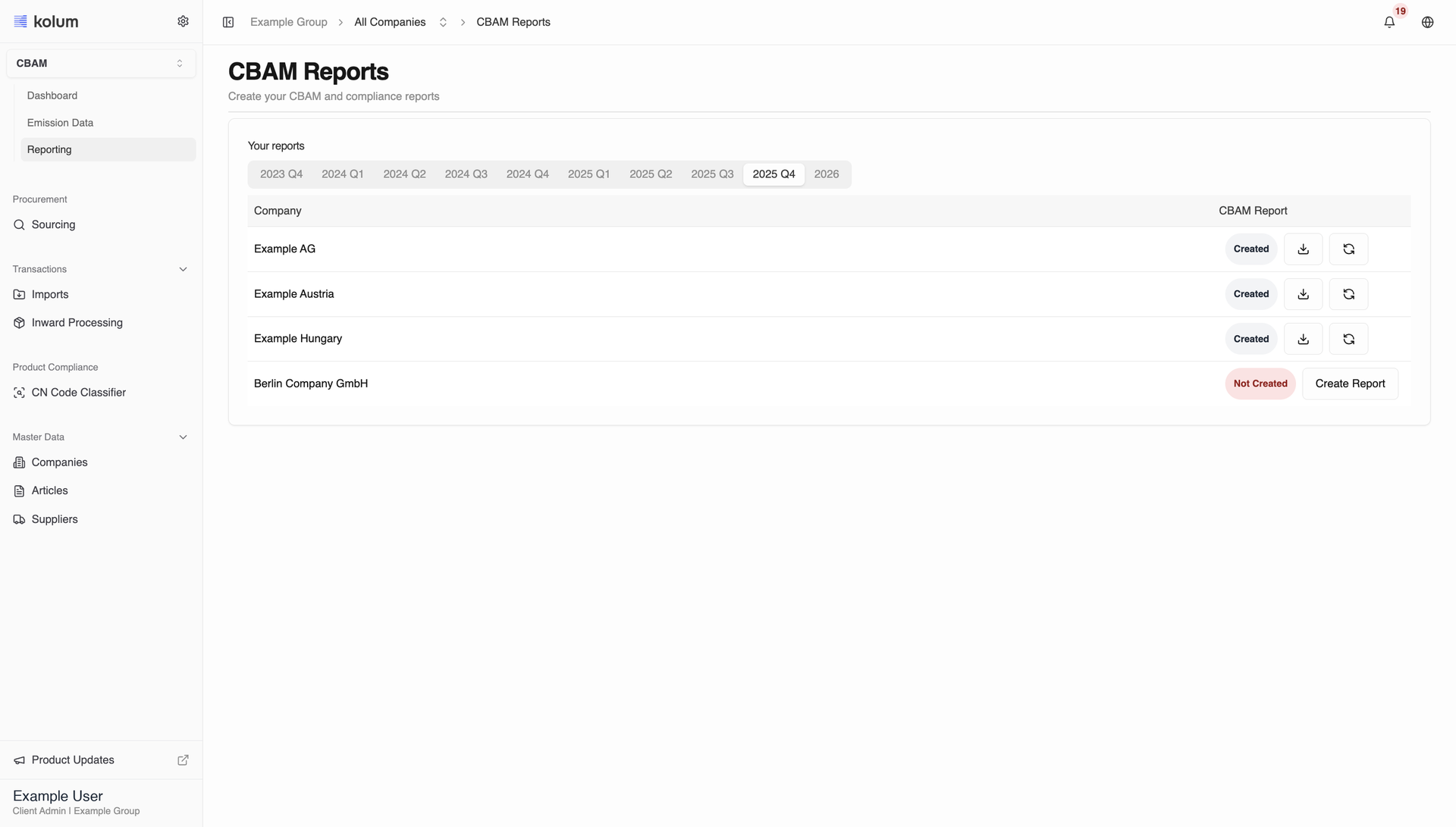
Go to Reporting in the sidebar. You will see reporting timeframes at the top and your companies underneath each, with a Create Report button for each company for the selected period.
- Select the reporting timeframe (for example 2025 Q3).
- Find your company. If no report exists yet, it shows as Not Created.
- Click Create Report. A side panel opens.
- Select the Creator (your user name) from the dropdown.
- Tick the two certification checkboxes: the first confirms the data is accurate and complete; the second confirms the report complies with Regulation (EU) 2023/956 and related requirements.
- Click Create Report. Status updates to Created.
You can regenerate the report if imports or emission data change before submission, and download it in the required format for the EU portal or your compliance archive.
In the CBAM compliance export, the Reporting Period column is now Reporting Timeframe across the Emissions Data, Imports x Emissions and Imports worksheets.
What you will have at the end
By this point your account holds a complete, connected picture, covering company, suppliers, optionally articles, imports, and embedded emissions, and you have produced and submitted a CBAM report. Because the records link together, staying compliant in future is just repeating the relevant step: add the next quarter's imports, collect the emission data, and generate the report again.
- All mandatory templates are uploaded and your imports appear in the CBAM dashboard.
- At least one of your admin users has logged in.
- You can upload data and generate a report on your own.
- You know how to request emission data from your suppliers.